Setup Guide: Inline-IPTV - 3 Easy Steps to Stream on Any Device
Ready to unlock premium entertainment? Master your Inline-IPTV configuration in just a few clicks! Follow our updated 2026 installation guide designed for Firestick, Android, and Smart TV users. Get your fast, 4K buffer-free experience running today with our streamlined, user-friendly setup.
Ensure your streaming hardware is connected to a fast internet connection. We recommend a consistent speed of 25 Mbps for a flawless 4K experience using our official Inline-IPTV setup instructions.
Once your subscription is confirmed, your unique Inline-IPTV login credentials and a comprehensive activation guide will be sent instantly to your email. Check your inbox to begin your premium streaming journey.
Depending on your hardware, download one of our high-performance compatible applications. Follow our streamlined guide to finalize the installation and enjoy the most stable Inline-IPTV server performance available today.

How to Setup Inline-IPTV in Under 3 Minutes! (Step-by-Step Guide 2026)
Master your Inline-IPTV setup with our 2026 step-by-step guide. Learn how to activate 4K streaming on Smart TV, Firestick, Android, and PC in under 3 minutes. Start watching your favorite channels instantly with our official easy instructions!
You can download SetIPTV / NetIPTV / Smart IPTV from your TV store on Samsung, LG …
Set up on Samsung: Fortunately, Samsung has recently added the IPTV Smarters to their App Stores which means you don’t need to sideload the app now and there is no need for the computer either. These are the steps that you can follow to get IPTV Smarters on Samsung TV in order to use our service:
- Step 1: Press the Smart Hub button from your remote.
- Step 2: Search for the IPTV Smarters Pro to install.
- Step 3: Log in to the Application with your subscription details.
Set on LG Smart TV
In case you own the LG which is running the LG WebOS then you can easily get the application from their Store directly. Just like Samsung, they have also added the IPTV Smarters officially to their App Store. Below are the Steps to download IPTV Smarters on your LG to use our service:
- Step 1: Press the Home button on the remote & Go to the LG Content Store.
- Step 2: Search for the IPTV Smarters Pro to install.
- Step 3: Log in to the Application with your subscription details..
Amazon Firestick Setup Guide
Complete installation guide for Firestick and Fire TV devices
Enable Unknown Sources
Go to Settings → My Fire TV → Developer Options and turn on “Apps from Unknown Sources”
💡 Pro Tip: This allows you to install IPTV apps not available in the Amazon App Store
Install IPTV Player App
Download TiviMate (recommended) or IPTV Smarters from the Amazon App Store
Add Your IPTV Subscription
Open the app and enter your credentials from your welcome email:
Start Streaming!
The app will load your channels and EPG guide. Browse channels, test the quality, and enjoy your IPTV experience!
1- Download VLC ( Download URL www.videolan.org
2 – Open VLC Player
3- Go to Media -> Open Network stream.
4- Add your Subscription M3U URL we sent to you and press play.
5- Wait till all the Channels load (this may take some time)
6- In case you are facing any issues with M3U loading, please contact our support team on WhatsApp and they will help you set your subscription.
Step 1: Start by downloading IPTV Smarters app from the Apple Store through this URL :
https://apps.apple.com/in/app/smarters-player-lite/id1628995509
or you can search for it on App store
install the app on your IOS device.
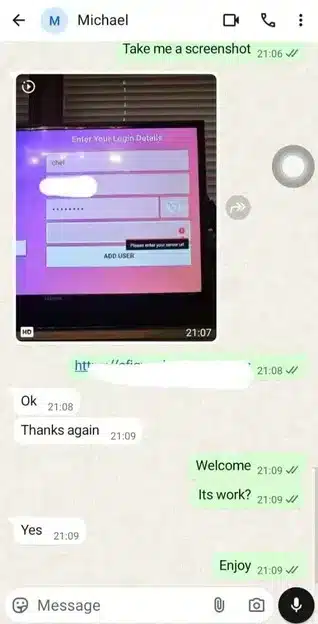
Step 2: Open the app once downloaded and Enter the login details.
Step 3: Enter the login details that we have provided you after you get a subscription with us
Now Click on “ADD USER” to proceed to the next section.
Step 4: Wait some seconds.
Step 5: Now click on “Live TV” icon as depicted in the image via a red arrow.
Step 1: Start by downloading IPTV Smarters app through this URL : https://www.iptvsmarters.com/smarters.apk
Step 2: Open the app once downloaded and Enter the login details.
Step 3: Enter the login details that we have provided you after you get a subscription with us
Now Click on “ADD USER” to proceed to the next section.
Step 4: Wait some seconds.
Step 5: Now click on “Live TV” icon as depicted in the image via a red arrow.
Step 6: Now you must select the channel group that you want to watch and proceed to the next section.
Step 7: Now you must click on the channel name and then double click on the small screen to turn into full screen as the final step.
- Go to: Settings—> System Settings —> Servers—>Portals
- Set Portal 1: IPTV Shop
- Set Portal 1 URL ( see your E-mail )
- Set Portal 2 Name leave this empty add this only If you order the second subscription
- Set Portal 2 URL leave this empty add this only If you order the second subscription
- Save everything
- Reboot device
- After the box is restarted, wait until the TV screen shows the channels.
In case you are facing any issues, please contact our support team on WhatsApp and they will help you set the subscription in your APP.
STB Emulator Setup Instructions:
- Download ‘STB Emulator’ from the Google Play Store here.
- Install and Load the ‘STB Emulator’ app and you will see your ‘MAC address’ on screen.
- Tap near the ‘Top right corner’ and then click ‘Settings’ – the 4th icon from the right.
- Tap ‘Profiles’.
- Tap ‘Test portal’ to modify the existing profile or ‘Add profile’ to start a new one.
- Tap ‘STB Model’.
- Tap ‘MAG 250’ or whichever STB you wish to emulate.
- Tap ‘Portal settings’.
- Enter your ‘Portal URL’ (Check your activation e-mail) and click OK.
- Now tap ‘Screen Resolution’.
- Choose ‘1280×720’ (You can choose higher with internet speed 16+ Mbps).
- Exit the app and restart.
- You will now see your channel list.
Troubleshooting STB Emulator
If you have any problems viewing the Channels please follow this recommended fix:
Restart your App, Device/Box, and Wi-Fi Router.
In case you are facing any issues, please contact our support team on WhatsApp and they will help you set the subscription in your APP.
STB Emulator Setup Instructions:
- Download ‘STB Emulator’ from the Google Play Store here.
- Install and Load the ‘STB Emulator’ app and you will see your ‘MAC address’ on screen.
- Tap near the ‘Top right corner’ and then click ‘Settings’ – the 4th icon from the right.
- Tap ‘Profiles’.
- Tap ‘Test portal’ to modify the existing profile or ‘Add profile’ to start a new one.
- Tap ‘STB Model’.
- Tap ‘MAG 250’ or whichever STB you wish to emulate.
- Tap ‘Portal settings’.
- Enter your ‘Portal URL’ (Check your activation e-mail) and click OK.
- Now tap ‘Screen Resolution’.
- Choose ‘1280×720’ (You can choose higher with internet speed 16+ Mbps).
- Exit the app and restart.
- You will now see your channel list.
Troubleshooting STB Emulator
If you have any problems viewing the Channels please follow this recommended fix:
Restart your App, Device/Box, and Wi-Fi Router.
In case you are facing any issues, please contact our support team on WhatsApp and they will help you set the subscription in your APP.
Facing minor issues? Start by restarting your router and streaming device to refresh your connection. Most InlineIPTV configuration challenges are easily resolved by following our updated setup guide, clearing your app cache, or verifying your network stability. For a flawless streaming experience, double-check that your login credentials are entered correctly. If buffering persists, we recommend trying an alternative player app to finalize your Inline-IPTV installation and enjoy the ultimate viewing journey.